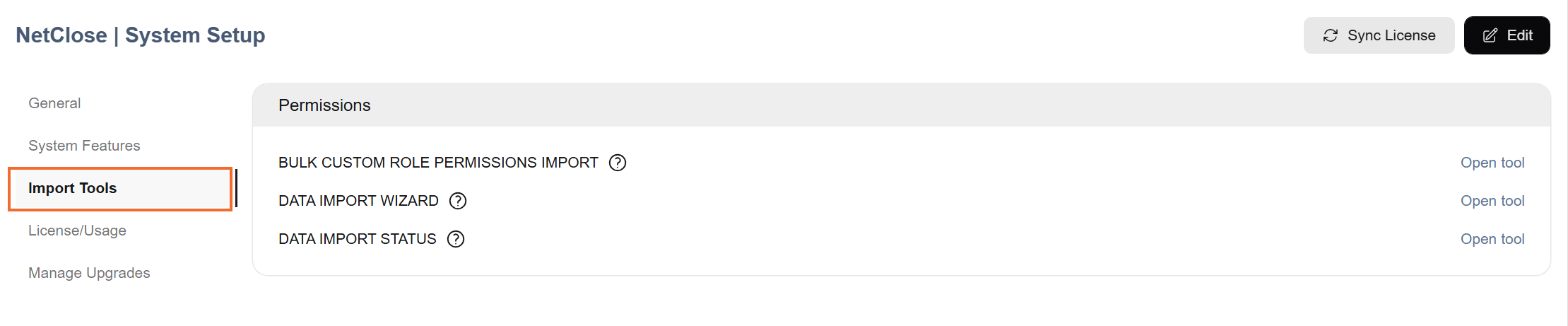
To access System Settings, go to NetClose > Setup > System Setup in the NetSuite navigation bar. This page controls system-wide behavior for your entire NetClose instance and is typically managed by your NetClose administrator.
Settings are organized across five tabs that run down the left side of the page: General, System Features, Import Tools, License/Usage, and Manage Upgrades. The page title and action buttons stay at the top of the page as you scroll.
Viewing and editing settings
System Setup opens in view mode, so you can read every setting without changing anything. Users with permission to edit see these buttons in the page header:
Edit - switches the page to edit mode.
Save and Cancel - appear in edit mode. Save applies only the settings you changed. Cancel discards your changes and returns to view mode.
Sync License - appears in view mode. Select it to refresh your license and usage information.
Editing requires the Enable Features permission
Users without the NetSuite Setup > Enable Features permission can open System Setup but cannot change it. They see a View only badge next to the page title, and no Edit or Sync License buttons. Hover over the badge for an explanation.
General
The General tab contains foundational settings for your NetClose implementation, including date configurations, display preferences, and default accounts.
Transition Selections
Setting
Description
NetClose Go-Live Date
Sets the earliest date available when filtering the task list. For example, a go-live date of August 2024 means task list filters will only return results from August 2024 forward.
Preferences
Setting
Description
Default Period
Controls which period is selected by default when opening most table views in NetClose.
Recon Update Balance MR Period Look-Back (Months)
NetClose runs a nightly script that checks for reconciliations that have gone out of balance due to transactions posting after the fact. This setting controls how many months back that job looks. The default is 12 months.
Enforce Overdue Reason
Requires users to provide an explanation when marking a record complete after its due date. You can enable this per module: Flux Analysis, Reconciliations, and/or Tasks.
Enable Features
Setting
Description
Show User Icon
When enabled, assignees appear as a colored icon with their initials rather than their full name.
Enforce Preparer
Prevents anyone other than the assigned user — including reviewers — from changing the status of a reconciliation, flux analysis, or task. Has no effect on records with no preparer, or where the reviewer is also the preparer.
When enabled, a new comment that mentions exactly one person automatically sets that person as the comment's assignee (and moves it to Assigned). Replies and comments with multiple mentions are left unassigned.
Default Intercompany Accounts
Setting
Description
Receivables Account
Default Intercompany Receivables Account for transfers within Amortizations or Accruals.
Payables Account
Default Intercompany Payables Account for transfers within Amortizations or Accruals.
Admin Alerts
Setting
Description
Admin Alert Recipients
Select the employees who should be emailed when NetClose needs an admin, such as when the Document Management connection to SharePoint or Google Drive breaks.
System Features
The System Features tab contains module-specific settings organized by functional area. Use this tab to configure behavior for Accruals, Amortizations, Close Control, Flux Analysis, Reconciliations, Tasks, and Flux Analysis AI.
Accruals
Setting
Description
Auto Approve Accruals
When enabled, accrual adjustment modifications are automatically approved upon creation — no manual approval step required.
Require Expense Account Match
Requires the GL Account to match the accrual's expense account during matching.
Amortizations
Setting
Description
Custom Transaction Approvers
Specifies which employees are authorized to approve custom amortization transaction types.
Auto-Approved Transactions
Specifies which custom amortization transaction types should always auto-approve, bypassing the authorized approvers list.
Amortization Posting Date
Controls the posting date for amortization journal entries. By default, entries post on the last day of the month. Useful for organizations that don't follow standard calendar months.
Summarize Method
Sets the default summary method on the Amortizations process journals page. When set to None (the default), a separate journal entry is created for each amortization selected during monthly processing. When set to Consolidate Lines, NetClose will combine NetClose Amortizations that would have identical journal entries (other than amount) into a single journal entry line. When set to Split Lines, NetClose will create a journal entry line for each individual amortization, however, all amortizations will be in one long journal entry.
Amortization Auto Generation Line Limit
The maximum number of qualifying transaction lines to process synchronously during the save event. If the number of lines requiring amortization creation meets or falls below this value, amortizations are created immediately upon record reload. If the number of lines exceeds this value, a Map/Reduce script is queued to process them in the background.
Setting this field to 0 disables inline creation entirely — a Map/Reduce script is always queued regardless of line count.
Note: Transactions with more than 50 qualifying lines are always processed via Map/Reduce due to governance and timeout constraints, regardless of this setting.
Disallow Amortization Start Date Before Transaction Date
Prevents the amortization start or capitalization date from being set before the date of the underlying transaction.
Use Custom Amortization Transaction Types
When enabled, NetClose Amortizations use custom NetClose journal types instead of standard NetSuite journal types.
Enable Custom Amortization Transaction Approvals
When enabled, custom amortization journal entries follow a NetClose approval flow instead of the standard NetSuite Journal Entry approval process. See the approval flow walkthrough for details.
Transaction Amortization Copy Date Text
For use when creating amortizations from NetSuite transactions generated by a third-party system that cannot pass date-type fields to NetSuite. When enabled, add the NetClose Amortization Text Integration Start Date and End Date fields to your Transaction Form. These fields accept text values and will automatically populate the corresponding NetClose date fields. The text must match your NetSuite date format preference (found under Formatting in NetSuite's Set Preferences page).
Enforce Summarize Method
When enabled, users cannot change the summary method on the process journals page — only the method set here will apply.
Auto Create Amortizations from Transactions
Check this box to enable our scripts to auto generate amortizations from transactions lines if they have an amortization type set.
Auto Generate Schedule from Amortizations Created Automatically
Check this box to enable our scripts to auto generate amortization schedules for amortizations that were automatically created from transactions lines.
Close Control
Setting
Description
Trigger Lock on Execution Type
Limits the locking script to only run for the selected execution types. For example, selecting User Interface means locking only applies to transactions created through the UI. If nothing is selected, the script runs for all execution types.
Target Close Day
The target day of the month for the close to be completed. NetClose uses it for analytics and reporting.
Auto Post in Next Open Period
Controls what happens when a journal entry is posted to a period locked by NetClose Close Management. When enabled, the entry is automatically posted to the next open period and the user sees a banner notification. When disabled, the entry is blocked from saving.
Lock Records on Create
When enabled, the transaction locking feature only triggers when transactions are first created.
Locking by Customer
Enables the ability to lock transactions by customer.
Locking by Vendor
Enables the ability to lock transactions by vendor.
Locking by Accounting Book
Enables the ability to lock transactions by accounting book.
Tiered Locking
Allows locking the General Ledger at a more granular level than standard NetClose locking. See the Tiered Locking article for details.
Target Close Day is Relative
When enabled, Target Close Day is counted as working days after the period end (skipping weekends and holidays) instead of a fixed day of the month.
Flux Analysis
Setting
Description
Alternate Explanation 1 Label
Renames the Alternate Explanation 1 field on the Flux Record.
Alternate Explanation 2 Label
Renames the Alternate Explanation 2 field on the Flux Record.
Alternate Explanation 3 Label
Renames the Alternate Explanation 3 field on the Flux Record.
Max Month Look Back Select Options
Limits how many months back a user can look when configuring a flux scenario.
Balance Refresh MR Period Look Back (Months)
NetClose runs a nightly job that checks for flux analyses that have changed or exceeded a threshold due to late-posting transactions. This setting controls how many months back that job looks. The default is 2 months.
Disable Delete Flux Scenario Button
Removes the Delete Scenario button from Flux Scenario records.
Flux Analysis Approvals
When enabled, Flux Analysis records support an approver workflow — records can be assigned approvers, submitted for review, and set to complete status.
Real Time Flux Balances
When enabled, the Review Flux page shows live balances rather than waiting for the nightly refresh to complete. Useful when the balance refresh is still processing in the background.
Only Generate Accounts with Flux Groups
When enabled, only accounts that have been mapped to a Flux Group are included when generating a new flux scenario. Only enable this after all accounts have been intentionally mapped.
Disable Flux Balance Change Notification
Check this box to disable balance change notifications (emails) for flux.
Reconciliations
Setting
Description
Generate Recons Chunk Size
Splits the account groupings into smaller batches when generating reconciliations. Slows the process slightly but can prevent script timeouts. Leave blank or set to 0 to disable chunking.
Custom Reconciliation Transaction Approvers
Specifies which employees are authorized to approve custom reconciliation transaction types.
New Reconciliation Link Transaction View
When enabled, reconciliation balances link to the new transaction list view.
Create Reconciliations For Non-Primary Books
Allows reconciliations to be created for non-primary accounting books.
Limited Recon Functionality
Allows certain users to change reconciliation status and create reconciling items without being able to edit other fields. Requires the NetClose Reconciliation permission set to View and the NetClose Recon Limited Activity permission set to Full. Creating, editing, and deleting reconciling items remains controlled by the NetClose Reconciliation Item permission.
Require Account Group on Account Setup
Prevents GL Accounts from being saved without a NetClose Accounting Grouping value.
Auto Reconcile on Create
Determines whether a reconciliation rule runs automatically after it's created or must be triggered manually.
Use Custom Reconciliation Transaction Types
When enabled, journal entries created from the NetClose Reconciliations app use a custom NetClose transaction type instead of a standard NetSuite Journal Entry.
When enabled, custom reconciliation journal entries follow a NetClose approval flow instead of the standard NetSuite process.
Show Recon Item Age Columns
When enabled, the Item Date and Item Age columns appear in the Reconciliation Dialogue window.
Disable Recon Balance Change Notification
Check this box to disable balance change notifications (emails) for reconciliations.
Document Management Use Numeric Period Names
When enabled, folders that Document Management creates for a period use a numeric name instead of the period name in the account. For example, June 2026 becomes 2026.06. Quarter and year folder names stay as they are.
Tasks
Setting
Description
Days to Show Complete Tasks
Sets how many days a completed task remains visible on the Kanban board and task list before being hidden. Tasks older than this threshold can still be found by filtering for an accounting period, filtering by "Completed" status, or searching NetClose Task records directly. This setting is ignored when a period or status filter is already applied.
Task Auto Generation Day
Sets the default value for the Auto Generation Day field on new task template records. Changing this setting does not update existing templates — those must be updated manually.
Task Auto Generation Preferred Period
Sets the default value for the Auto Generation Preferred Period field on new task template records. Changing this setting does not update existing templates — those must be updated manually.
Exclude Task Types from Close Dashboards
Tasks with any of the selected task types are excluded from the close dashboards (My Work, Close Progress, and Close Trends). Use this for types that are not part of the month-end close, such as Project or Personal. Excluded tasks still appear on the Task List and Task Board.
Exclude Task Classifications from Close Dashboards
Tasks with any of the selected task classifications are excluded from the close dashboards (My Work, Close Progress, and Close Trends). Use this for classifications that are not part of the month-end close, such as post-close review. Excluded tasks still appear on the Task List and Task Board.
Enable Task Email Notifications On Trigger
When enabled, automated emails are sent when certain task events occur, such as an assignee change. Can be customized on a per-task basis.
Require Tasks to be Started
When enabled, users must move a task to In Progress before they can submit it for approval or mark it complete.
Update Templates from Task App
Controls whether users can update a task template directly from the Task Application popup using the Update Template button.
Limited Task Functionality
Allows certain users to change task status and complete steps without being able to edit other fields. Requires the NetClose Task permission set to View and the NetClose Task Activity permission set to Full.
Flux Analysis AI
Setting
Description
Flux AI Length (Characters)
Sets the target length of the AI-generated explanation. Default is 1,200 characters. Minimum is 50, maximum is 1,500. Values outside this range fall back to the default.
Controls which data fields are sent for AI analysis. Default includes: date, subsidiary name, account, transaction type, entity name, transaction name, memo, and amount. ID Preferred substitutes internal IDs for subsidiary and entity name fields and excludes memo.
Do Not Include Transaction Memo
Excludes transaction memo data from AI analysis. Memo data is included by default.
Import Tools
Setting
Description
Bulk Custom Role Permissions Import
Allows NetClose role permissions to be updated in bulk across one or more NetSuite roles.
Data Import Wizard
Opens the Data Import Wizard tool.
Data Import Status
Opens the Data Import Status page.
License/Usage
This tab is read-only and provides a snapshot of your current subscription and usage. To refresh it, select Sync License in the page header (available to users who can edit System Setup).
Setting
Description
License
Shows your current license status and subscription tier.
Enabled Modules
Lists which NetClose modules are active in your instance.
Employee
Shows user counts including: total users, full users, task-only users, and your limits for each type.
Manage Upgrades
Field Name
Description
Example
Upgrade Preference
Controls when NetClose updates are applied to your instance. Major Updates upgrades only for major feature releases, Minor Updates upgrades for minor and major feature releases, and Bug Fixes upgrades for every release, including bug fixes. This field is not required. If you leave it empty, it saves as Bug Fixes.
Bug Fixes
Last Upgrade Date
Shows the date your NetClose bundle was last updated.